
Getting started
Use Sales Pep with Zoom or Google Meet on Mac
Keep your usual meeting app. Sales Pep listens through your Mac and shows suggestions in its own widget. Run these checks before you use it with a customer.
- Before you start
- An Apple silicon Mac with macOS 14.2 or later, the Sales Pep desktop app, an account and an internet connection. Live coaching is not available in the browser workspace. Windows is coming soon.
- What to check
- Test your microphone and computer audio. Everyone heard through computer audio shares one label in the transcript. The default is “Customer”.
Install and sign in
- Download Sales Pep for Mac, open the downloaded file and drag Sales Pep into Applications.
- Open Sales Pep from Applications and sign in with Google or an email code.
- Allow microphone and system audio access when prompted. Sales Pep uses audio; it does not need screen recording access.
If you changed a permission in System Settings, fully quit Sales Pep and reopen it before testing again.
Check both audio sources
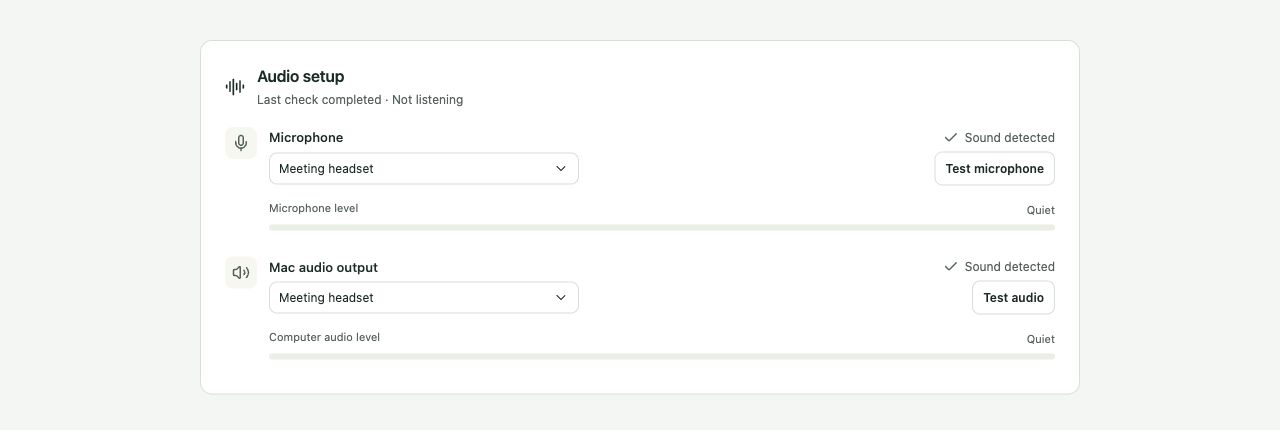
Open Account & settings → Audio setup in Sales Pep. Use the microphone or headset you actually use for meetings.
- Test your microphone. Choose your meeting microphone, start its test and speak a sentence. Look for movement in the microphone meter.
- Test computer audio. Play a speaker test from your meeting app, or ask a colleague to speak in a test call. Look for movement in the computer audio meter.
- Check again after changing devices. Connecting headphones or choosing a different microphone can change what Sales Pep receives.
These short audio checks stay on your computer and stop after 30 seconds. They do not start a meeting or upload audio. A live coaching session processes audio for transcription and coaching as described in the Privacy Notice.
If you use Zoom
- Join the meeting using computer audio. If you dial in on a phone, that phone’s audio is not coming through your Mac.
- In Zoom’s audio settings, choose your meeting microphone and headphones. Select the same microphone in Sales Pep.
- Use Zoom’s speaker test while running the computer audio check in Sales Pep. Then test your microphone separately.
Zoom provides a guide to its speaker and microphone tests.
If you use Google Meet
- Open the meeting in your browser. In Meet’s preview or audio settings, choose the microphone and speakers you intend to use.
- Give your browser the microphone permission Meet requests. This is separate from Sales Pep’s microphone and system audio permissions.
- Choose that microphone in Sales Pep. Run its computer audio check while a colleague speaks in a test meeting, then check your microphone.
Google’s audio and video self-check guide explains the meeting controls.
Try one call before using it with a buyer
Add your company context and a simple meeting goal. Try a short conversation with a colleague, then use Suggest a question or Help me answer in the widget. Check that the transcript captures both sides and that the context is relevant.
Inform everyone taking part and obtain any required permission before a live session. Muting Zoom or Meet does not stop Sales Pep from listening. End the Sales Pep session when you have finished.
If you will share your screen, test that exact sharing mode with your colleague. Widget invisibility is not guaranteed. You remain responsible for checking suggestions before using them.
If an audio check does not respond
- The microphone meter does not move
- Check the selected microphone is connected and unmuted. Open microphone permissions from Sales Pep’s audio troubleshooting controls, allow Sales Pep, then fully quit and reopen it if you changed permission.
- You can hear the meeting, but computer audio does not register
- Check system audio permission for Sales Pep. Make sure the meeting sound is playing on the Mac, not a phone. Reopen Sales Pep after changing permission, and test with audible meeting sound.
- Both meters work, but live suggestions do not appear
- An audio check confirms audio input, not the coaching connection. Check your internet connection, available call time and any message shown in the app. If it still fails, contact Sales Pep with your macOS and app versions and the error message. Avoid including private call content.
For macOS controls, see Apple’s guides to microphone access and system audio access. Labels can differ between macOS versions.
See what you can ask during a call
Follow a worked discovery call from the context you add to the next question you choose.